
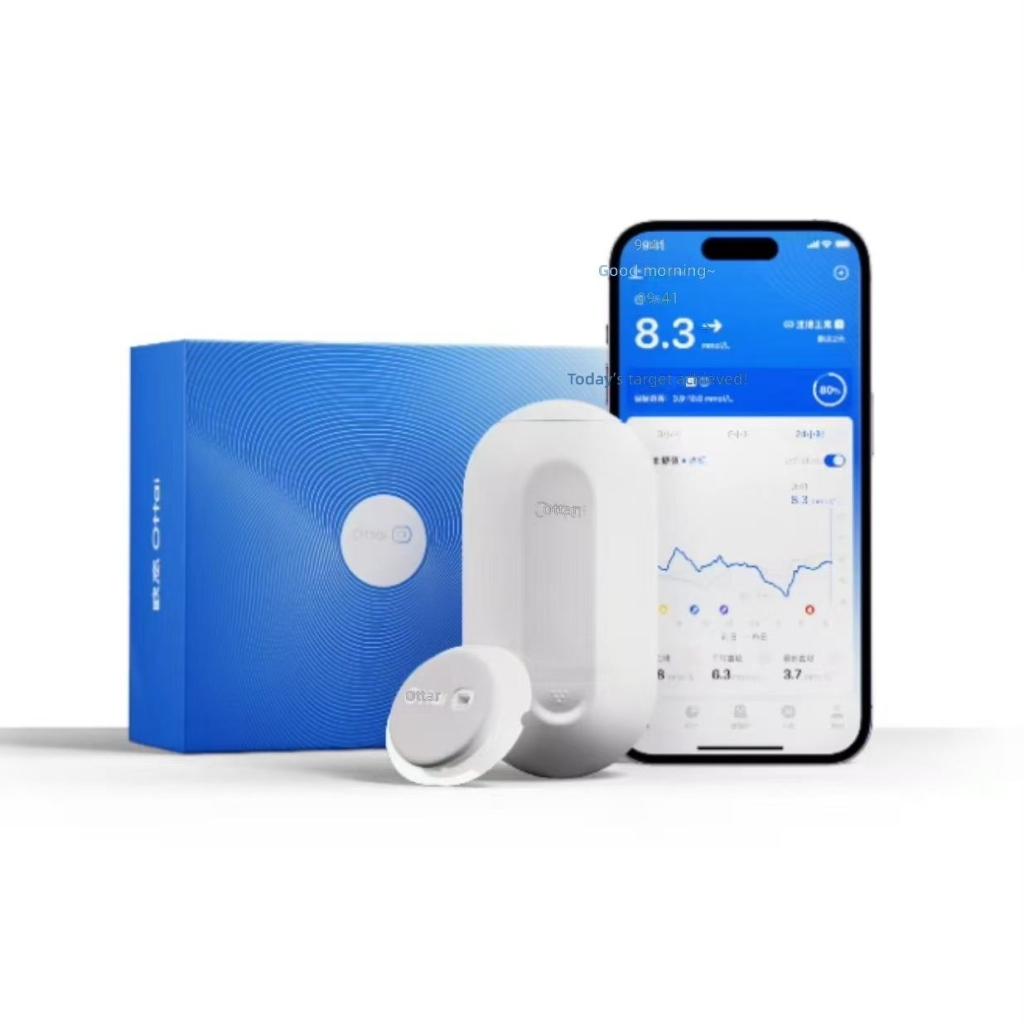
When a continuous glucose monitoring (CGM) app does not show a notification, the cause may be a phone permission, background activity setting, connection issue, app configuration or a feature that the specific system does not support. This CGM app notifications not working checklist helps you review common compatibility settings before contacting product support.
This guide covers general phone and product checks. Notification behavior differs by CGM model, app version, phone and region. Follow current manufacturer instructions. App notifications are not a substitute for the monitoring method or safety steps specified by the manufacturer or a qualified healthcare professional.
First Confirm What the CGM App Supports
Not every CGM app offers the same notification types. Some may show status updates, connection messages or optional alerts; availability can depend on the sensor model, account, app version and region. Before changing phone settings, check the user guide or official app documentation for the exact product.
Do not assume that a feature shown in a different model’s screenshots is available on your CGM. Verify that the system is activated, paired with the intended phone and signed in to the correct account.
CGM App Notification Troubleshooting Checklist
- Confirm app and system compatibility. Check the exact CGM model, supported phone models, operating system version and app version.
- Review notification permission. In your phone’s current settings, confirm notifications are allowed for the official CGM app. Menu names vary by operating system version.
- Check notification categories. Some phones let you enable or silence different kinds of notifications separately. Review relevant categories without assuming every category is a safety alert.
- Review Focus, Do Not Disturb or similar modes. These modes can silence or summarize notifications. Check current phone instructions for exceptions and allowed apps.
- Check background activity and battery controls. Power-saving features may limit app activity when it is not open. Review phone guidance and the CGM app’s documented requirements.
- Confirm connection and pairing status. Open the CGM app and check the system status it reports. Follow exact product instructions if it shows a connection or sensor message.
- Check date, time and network access. Confirm phone time settings are correct and that any network access required by the app is available.
- Review the app’s own alert settings. If the model supports configurable notifications, confirm the options are enabled in the app and set as intended.
- Update only through official channels. Check the official app store for a current app version and the manufacturer for compatible software guidance.
- Restart only as documented. Before restarting, reinstalling or unpairing, check whether the manufacturer warns that these steps could affect an active sensor session or stored data.
iPhone and Android Settings to Review
Exact menu labels change across operating system versions and phone brands. Use current device help pages to locate these controls rather than following an old screenshot.
| Area | What to check |
|---|---|
| App notifications | Permission, sound, banners or lock-screen display as supported |
| Focus or quiet modes | Whether the app is silenced or scheduled notifications are delayed |
| Battery or background use | Whether background operation is restricted for the app |
| Bluetooth | Whether Bluetooth is enabled and the CGM app reports the expected device connection |
| App version | Whether the installed version is supported for the CGM model and operating system |
| Region and account | Whether the official app is available and the account is configured for the intended country |
Check the Phone and App Pairing
Some CGM systems allow only one active phone connection, while others may support a receiver and a phone together. Details differ by model. Confirm the permitted pairing arrangement before removing an existing connection or pairing a second device.
For more background, read our CGM receiver vs smartphone app compatibility checklist. If selecting a new system, review supported app region and phone requirements before ordering.
When to Contact Product Support
Contact the manufacturer or seller with the exact model, app version, phone model, operating system version and the message shown in the app. Avoid sharing passwords, verification codes or personal health records in a public review or unsecured message.
If the app indicates a sensor problem, a reading is unavailable, or you are unsure what monitoring step to follow, use the manufacturer’s stated backup and confirmation instructions. For health-related questions, consult a qualified healthcare professional.
Frequently Asked Questions
Why are my CGM app notifications delayed?
Possible causes include notification permissions, quiet modes, battery restrictions, background activity, connection status or app configuration. Check exact app documentation because behavior varies by system.
Will keeping Bluetooth on guarantee notifications?
No. Bluetooth availability alone does not guarantee a connection or notification. The exact app, sensor, phone, settings and supported range all matter.
Should I reinstall the CGM app to fix alerts?
Check manufacturer guidance first. Reinstallation or unpairing may affect account access, pairing or session data for some systems.
Can I rely on phone notifications as my only monitoring method?
Follow product instructions for the intended monitoring method and any backup steps. Do not assume notifications will always be delivered.
Are CGM notifications the same across all brands?
No. Notification types, configuration and phone compatibility differ by product, app version and region.
Related WongTech Guides and Products
- CGM receiver vs smartphone app compatibility checklist
- CGM sensor and transmitter compatibility checklist
- Ottai continuous glucose monitoring system
- Sinocare iCan i3 CGM
- Browse glucose monitoring products
Final Check
Verify the CGM model supports the notification you expect, allow the app’s required permissions, review quiet and battery settings, confirm pairing in the app, and follow official troubleshooting steps. If an alert or reading remains unavailable, use the manufacturer’s guidance for what to do next.
Target keyword: CGM app notifications not working
Suggested image alt text: Continuous glucose monitoring sensor and smartphone app notification compatibility checklist.