
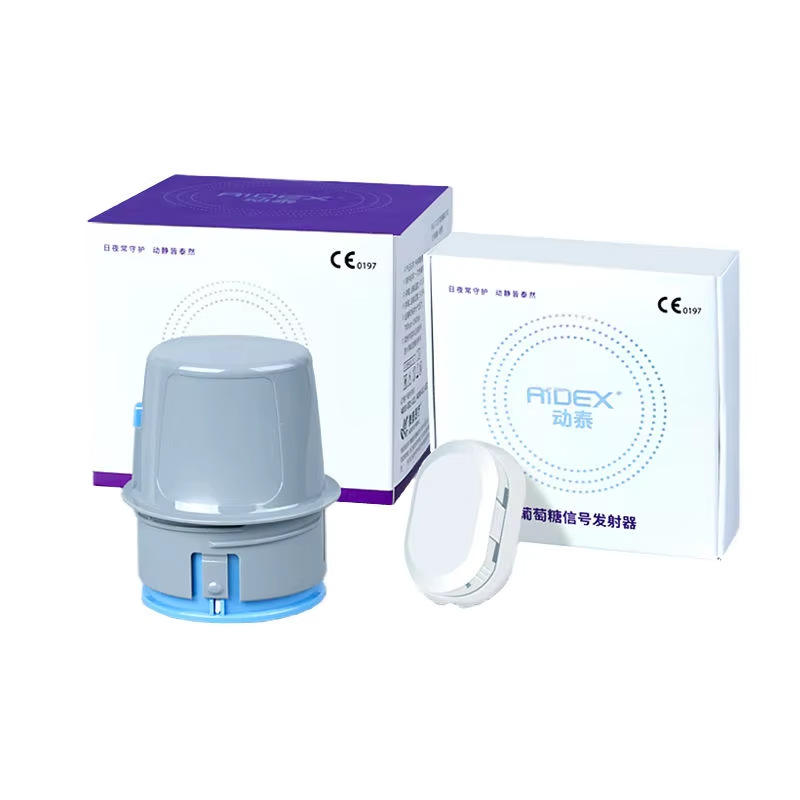
A Bluetooth blood glucose meter can transfer stored readings to a compatible mobile app, but Bluetooth alone does not guarantee that every phone, operating system or regional app store will work with every meter. This Bluetooth blood glucose meter phone compatibility checklist explains what to verify before ordering and how to prepare for setup.
This guide provides general product information. Always follow the instructions supplied with the meter, test strips and mobile application. Browse WongTech’s glucose monitoring products to compare available options.
1. Confirm the Exact Meter Model
Start with the complete brand, model number and generation. Products with similar names may use different apps, test strips or connection procedures. Compare the model shown on the product page, packaging and manufacturer documentation.
For example, review the specifications and package contents of the Bluetooth Blood Glucose Monitoring System before purchase.
2. Check Your Phone Operating System
- Confirm whether the app supports Android, iOS or both.
- Check the minimum and maximum supported operating-system versions.
- Verify that your phone can still receive required system and security updates.
- Do not assume that a tablet is supported just because a phone is supported.
App compatibility can change after an operating-system update. Check the current manufacturer documentation or official app listing close to the time of purchase.
3. Verify App Availability in Your Country
An app may appear in one regional app store but not another. Before ordering, search the official Apple App Store or Google Play Store used by your phone account. Confirm the developer name, app icon and supported meter models rather than downloading an unofficial app with a similar name.
If the required app is unavailable in your region, do not rely on changing account regions or installing files from unknown websites. Ask the manufacturer or seller whether the meter can still operate independently and whether data can be reviewed on the meter itself.
4. Review Bluetooth and Phone Requirements
| Item to check | Why it matters |
|---|---|
| Bluetooth version | The meter may require a particular Bluetooth standard or Bluetooth Low Energy support. |
| Location permission | Some Android versions require location-related permission for Bluetooth discovery. |
| Nearby devices permission | Newer operating systems may request explicit access to nearby Bluetooth devices. |
| Background activity | Battery-saving settings can delay automatic synchronization. |
| Internet access | Account creation, cloud backup or app updates may require a connection. |
| Available storage | The app needs adequate space for installation, updates and stored records. |
5. Understand Account and Data Requirements
Some apps work locally, while others require an email address, phone number or cloud account. Review the app’s privacy information and determine:
- whether account registration is mandatory;
- where synchronized data is stored;
- whether data export is available;
- whether multiple users can use one phone or meter;
- whether sharing features require additional consent;
- what happens to saved records if the app is removed or the phone is replaced.
Do not share login credentials. Use a strong, unique password if the app requires an account.
6. Confirm Test Strip Compatibility Separately
Phone compatibility and test strip compatibility are different checks. A meter may pair correctly with a phone but still require one exact strip type, coding method, sample volume and storage range. Confirm the strip model, expiration information and local availability before purchasing the meter.
Never substitute strips from another model unless the manufacturer explicitly identifies them as compatible.
7. Prepare for First-Time Pairing
- Read the complete meter and app instructions.
- Install the official app from the phone’s official app store.
- Charge the phone and, where applicable, check the meter battery.
- Enable Bluetooth and grant only the permissions required by the instructions.
- Keep the meter close to the phone during pairing.
- Pair through the app if directed; do not use the phone settings menu unless instructed.
- Confirm that the meter date, time and measurement units are set correctly.
- Perform synchronization exactly as described and check that the transferred record matches the meter display.
8. Troubleshooting a Meter That Will Not Connect
- Confirm that the correct official app and meter model were selected.
- Check that Bluetooth and required permissions are enabled.
- Close and reopen the app, then follow the manufacturer’s reconnection steps.
- Make sure the meter is not already connected to another phone or account.
- Check for app and operating-system updates supported by the manufacturer.
- Avoid deleting records, resetting the meter or removing an account until you understand whether data will be lost.
If pairing still fails, record the meter model, phone model, operating-system version and app version before contacting official support.
9. Before-Ordering Checklist
- Exact meter model and generation confirmed
- Compatible phone and operating-system version confirmed
- Official app available in your regional app store
- Required Bluetooth features and permissions understood
- Account, privacy and data export requirements reviewed
- Correct test strips available
- Measurement units and language options suitable
- Package contents, shipping and return terms reviewed
For a wider product review, read the Glucose Monitoring Product Compatibility Checklist. Also review our Shipping Information and Return & Refund Policy.
Frequently Asked Questions
Will any Bluetooth phone work with a Bluetooth glucose meter?
No. Compatibility depends on the meter model, official app, phone operating system, Bluetooth requirements and regional app availability.
Can the meter work without a phone?
Some meters display and store readings independently, while others depend more heavily on an app. Verify the functions of the exact model before ordering.
Should I pair the meter in my phone’s Bluetooth settings?
Only if the manufacturer instructions say to do so. Many devices must be paired from inside their official app.
Will my records transfer automatically?
Automatic synchronization varies by model and may depend on app permissions, background activity, internet access and proximity. Follow the supplied instructions.
Can I use test strips from a similar meter?
Use only the strip type identified by the manufacturer as compatible with the exact meter model.
Final Note
A short compatibility check before purchase can prevent common setup problems. Verify the meter, phone, app, region and test strips as one complete system. If instructions are unclear or readings do not match how you feel, follow the manufacturer’s guidance and consult a qualified healthcare professional where appropriate.
Suggested image alt text: ?Bluetooth blood glucose meter phone compatibility checklist.?
This article is general product information and does not replace manufacturer instructions or professional medical advice.
Pingback: Traveling With a CGM: Airport, Storage and Packing Checklist - WongTech
Pingback: mg/dL vs mmol/L Blood Glucose Meters: Unit Compatibility Before Buying - WongTech
Pingback: CGM Sensor and Transmitter Compatibility Checklist Before Ordering - WongTech